How to Colorize Black-and-White Video Online
On the VidFixr upload page, select Colorize Black & White. If you only want colorization, deselect Restore & upscale. The Preview checkbox is off by default: select “Generate a free watermarked Preview first” before uploading if you want a short sample. Otherwise, the default route is Full processing; review the quote before deciding whether to buy it.
1. Prepare a playable digital video
Start with an existing video file, not a physical tape or film reel. Have physical footage digitized first, and keep your own original digital copy before making changes.
The upload page lists MP4, MOV, AVI, MKV and WebM. SDR video is supported; HDR and BT.2020 footage are not supported by the current upload route. Check your file rather than assuming that its extension establishes everything about it.
2. Choose colorization alone or both enhancements
Restore & upscale starts selected. Select Colorize Black & White, then decide whether to leave restoration enabled.
| What you want | Selection and output |
|---|---|
| Colorization alone | Select Colorize Black & White; deselect Restore & upscale. Processing keeps the source size, with possible small edge adjustments for format compatibility. |
| Colorization plus restoration | Select both. The output follows the selected restoration tier. |
Use the first route when adding estimated color is your purpose. Choose both when you also want restoration and upscaling, then judge those changes separately from the color. The online restoration guide explains that option in more detail.
3. Decide whether to request a Preview
Before uploading, decide whether to select “Generate a free watermarked Preview first.” Leaving it unchecked keeps the default Full route.
The optional Preview is a short, watermarked sample. It cannot establish how every later scene will look, and you should not assume it contains the person or moment you most want to inspect.
4. Upload the file with your chosen options
With those choices set, upload your file and complete any account or file-validation steps the site presents. An optional Preview is only a sample, not the full processed file.
5. Review the quote before buying Full processing
Review the quote and your selected enhancements before deciding whether to pay for the full video. If you requested a Preview, use the sample available to you to inform that decision, while remembering its limited coverage.
Full processing is paid; the complete output comes after purchase, not before it. Reconsider your selection before purchasing if it does not fit your purpose.
6. Compare available output with your original
When output is available, compare the same moments in the original and processed versions. Watch several consecutive moments at normal speed before pausing on details.
Look at skin, clothing and nearby objects. Does a sleeve change color distractingly as someone turns? Do colors behave consistently when a person crosses a shadow?
Maintaining color consistency across frames is a recognized challenge in video-colorization research. A convincing still frame alone is therefore not enough to judge a sequence.
If you selected restoration too, inspect faces and expressions as well. See what AI restoration can change in a face for further checks.
An example with restoration and colorization
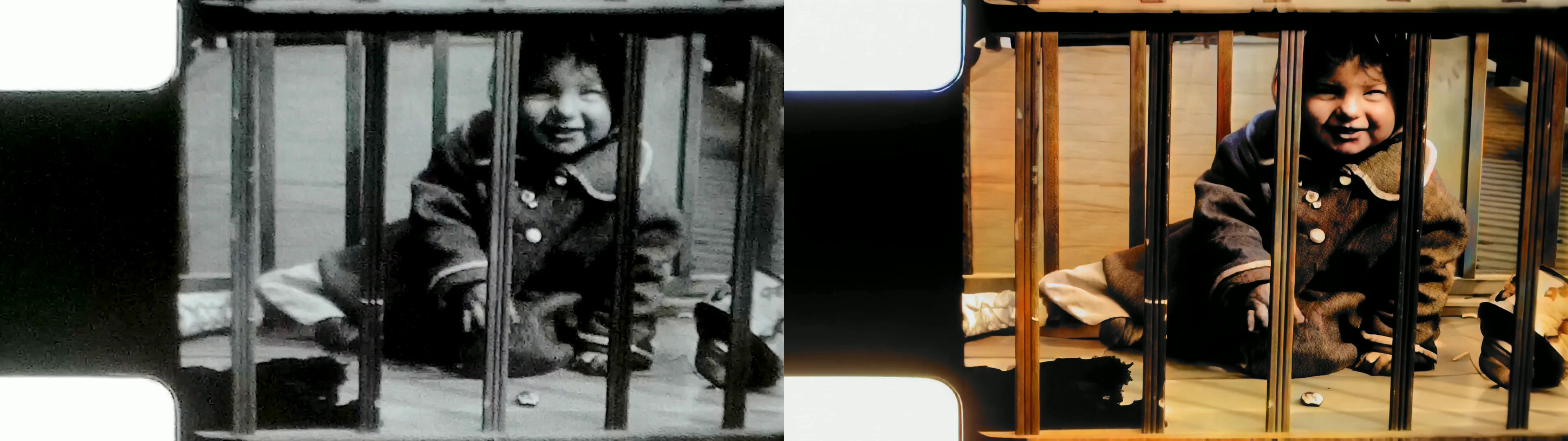
Stock footage: J.S.McDuff / Pexels 31811333 · Actual VidFixr Restore 1080p + Colorize output · AI-estimated colors. Not customer footage or an endorsement. Results vary by footage.
This older example combines restoration and colorization; it does not show colorization alone. In this frame, the clothing and background share a strong warm brown and orange-yellow cast, and the film edge has an unnatural colored outline. Added color is not the same as recovered historical color. This still also cannot establish how colors behave throughout the moving clip.
Decide what the colors mean to you
AI estimates colors; it does not verify the historical color of a coat, a car or a room. Image-colorization research describes how a grayscale image can admit multiple plausible color predictions.
Use reliable photographs or personal knowledge to judge the result yourself. Compare familiar clothing and surroundings with what you know, and decide whether the estimated colors suit your purpose.
Keep the original alongside the color version. If you share the latter, label it as AI-colorized so future viewers can distinguish interpretation from the source recording.
Frequently asked questions
Can I colorize without upscaling?
Yes. Select Colorize Black & White and deselect Restore & upscale. Minor dimension adjustments for format compatibility are still possible.
Is a Preview automatic?
No. Its checkbox is off by default. Select it before uploading if you want a free, watermarked short sample.
Will the colors be historically accurate?
They are estimates. A plausible result is not proof of the original colors.
Does a good Preview establish the whole video's quality?
No. Later scenes may differ. Inspect the full result for the sections you intend to use and retain your original.
Open the upload page to choose your enhancements and decide whether to request a Preview before uploading.